9. Get Data from the Web
Goal: Import the California city population data from a web page.
The population data in the location table is old. The trainer gets the newest data from a web page.
Step 1: Open the web page
- Open a browser.
- Go to
https://www.california-demographics.com/cities_by_population. - Copy the page address (URL).
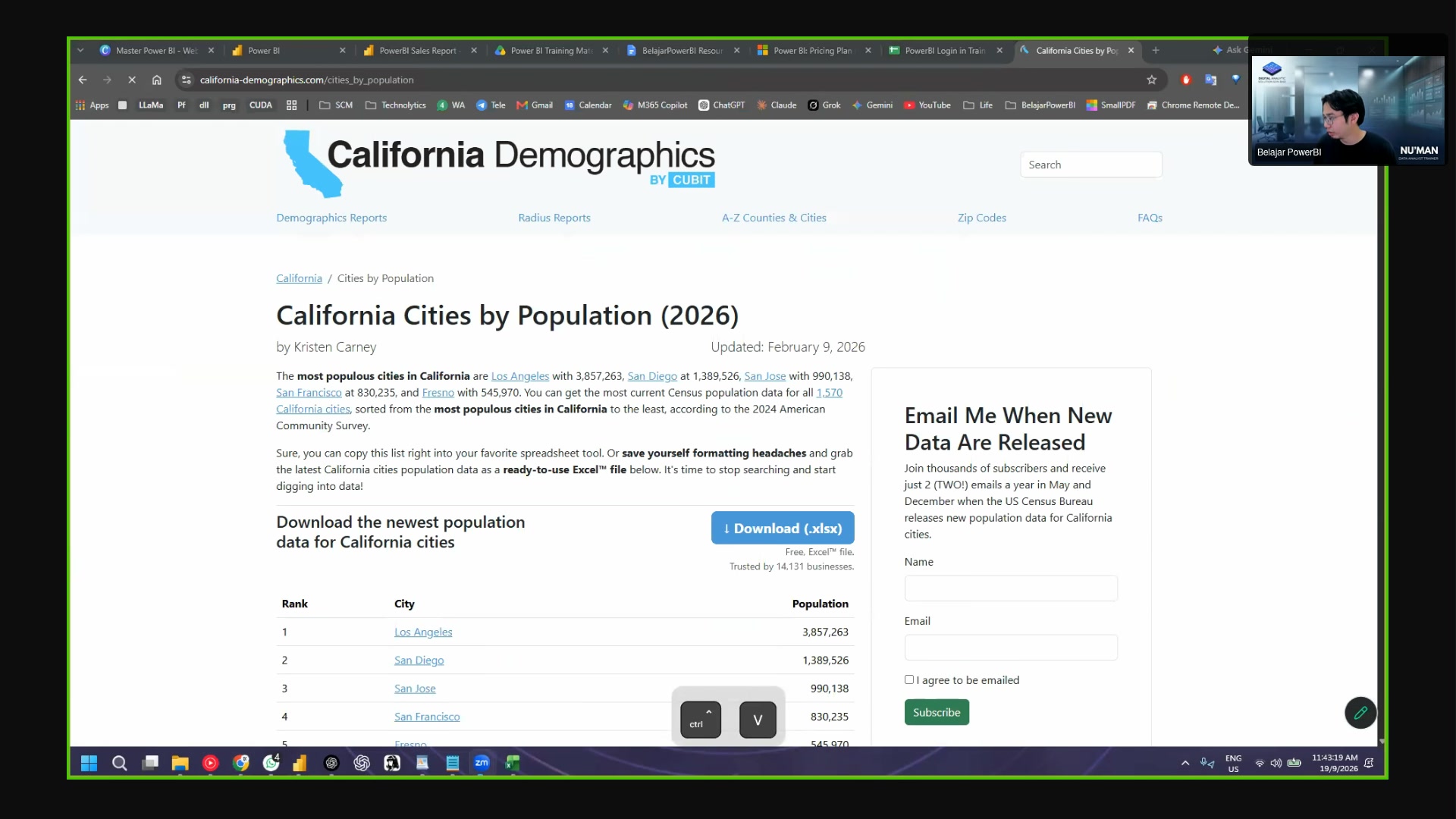 The data source web page.
Step 2: Add the web source in Power Query
- In Power Query, click Home.
- Click New Source.
- Click Web.
- Paste the URL in the box.
- Click OK.
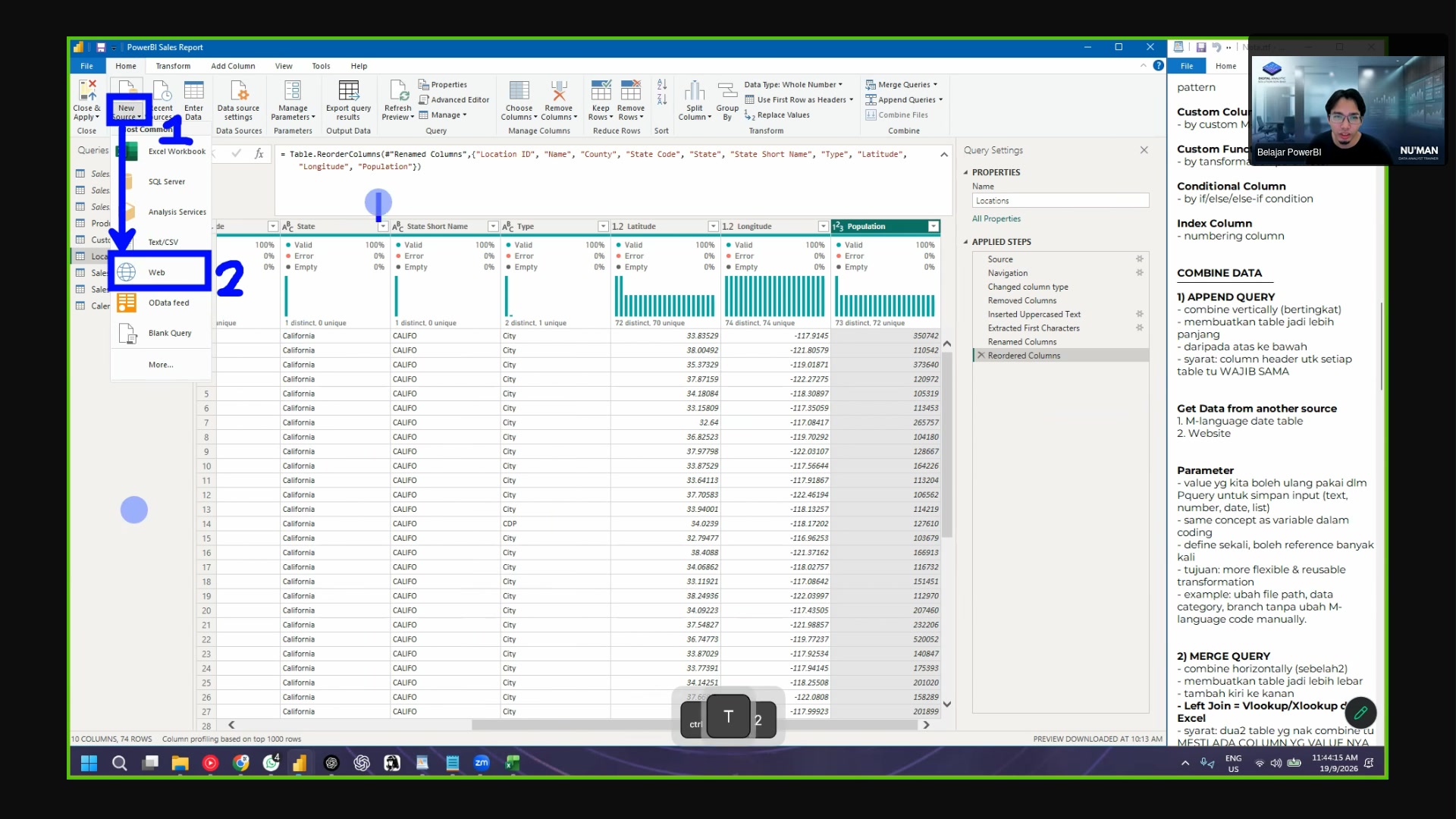
Step 3: Select the table
Power Query reads the page and shows the tables it found.
- Look at the list. Find the table with city names and population numbers.
- Click the table name. A preview appears.
- Click Transform Data.
Loading is slow
A web import can take a long time. If the load takes more than a few minutes, click Cancel and add the source again.
Step 4: Clean the table
- Find the Rank column. It shows errors.
- Right-click the column header.
- Click Remove.
- Keep only two columns: the city name and the population.
- Rename the query to CA Population.
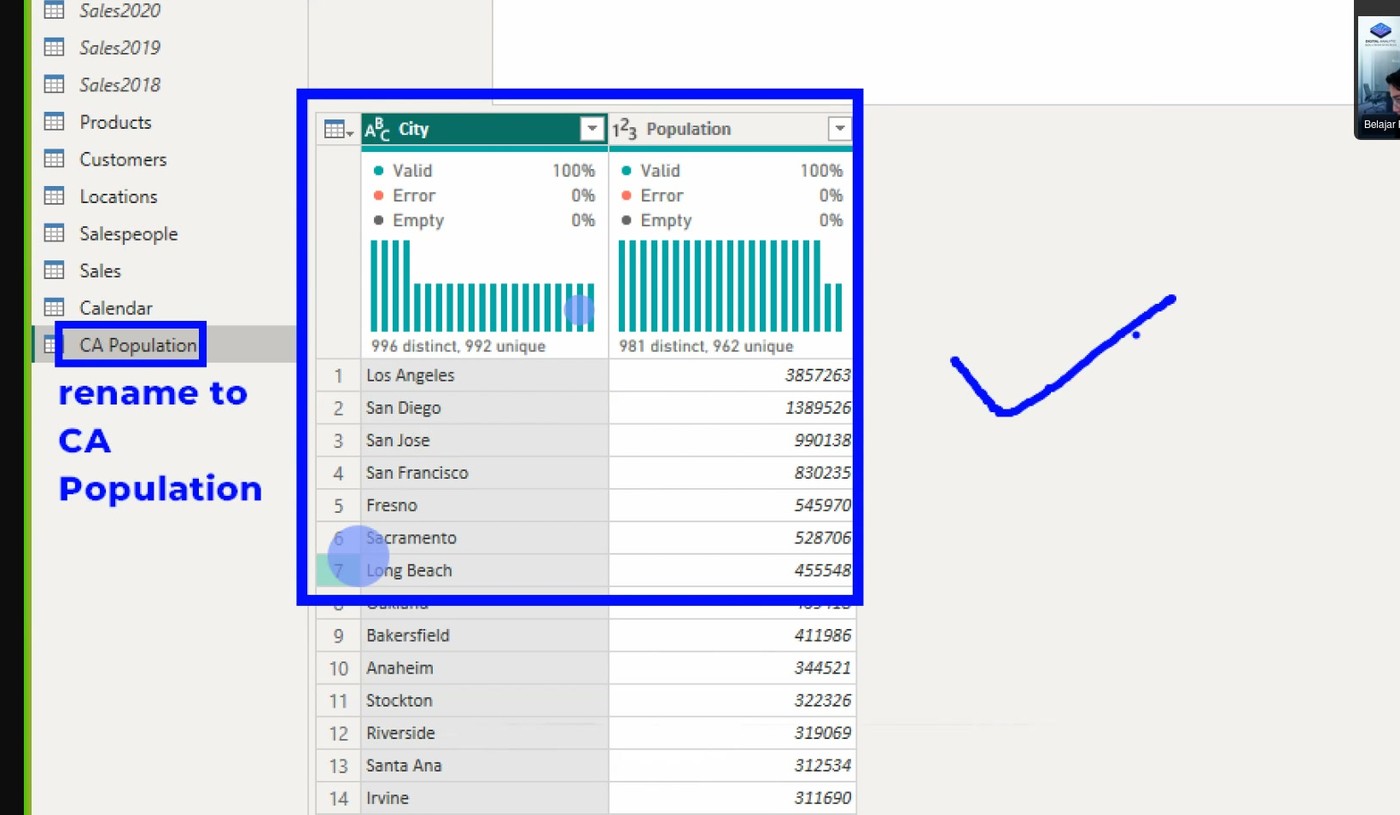 The cleaned CA Population table: city and population only.
Snapshot data
Web data is a snapshot. Power BI reads the newest values when you refresh. Power BI cannot keep old versions of web data.
Next: Continue to 10. Merge Tables.