7. Calendar Table
Goal: Create a date table with M code. Use it for time analysis in the report.
Why you need a calendar table
Your data has a Purchase Date column. Example: a date in November 2018. Power BI can read the date, but it cannot group by month, quarter, or year on its own. You need a table with one row for each date. The table also has columns for month name, quarter, and year.
Every dashboard that uses dates needs a calendar table.
Step 1: Open a blank query
- In Power Query, click Home.
- Click New Source.
- Click Blank Query.
A new query appears. The name is Query1.
Step 2: Open the Advanced Editor
- Click Home > Advanced Editor.
- The editor shows all the M code for this query.
- Select all the text.
- Delete the text.
Step 3: Paste the calendar M code
- Copy the code below.
- Paste it into the Advanced Editor.
- Click Done.
let
    StartDate = #date(2018, 1, 1),
    EndDate = #date(2021, 1, 1),
    DayCount = Duration.Days(EndDate - StartDate) + 1,
    DateList = List.Dates(StartDate, DayCount, #duration(1, 0, 0, 0)),
    TableFromList = Table.FromList(DateList, Splitter.SplitByNothing(), {"Date"}),
    ChangedType = Table.TransformColumnTypes(TableFromList, {{"Date", type date}}),
    AddDateKey = Table.AddColumn(ChangedType, "Date Key", each Date.ToText([Date], "yyyyMMdd"), type text),
    AddYearMonth = Table.AddColumn(AddDateKey, "Year Month", each Date.ToText([Date], "yyyyMM"), type text),
    AddMonthYear = Table.AddColumn(AddYearMonth, "Month Year", each Date.ToText([Date], "MMM-yy"), type text),
    AddMonthName = Table.AddColumn(AddMonthYear, "Month Name", each Date.ToText([Date], "MMMM yyyy"), type text),
    AddQuarter = Table.AddColumn(AddMonthName, "Quarter", each "Q" & Text.From(Date.QuarterOfYear([Date])), type text),
    AddQuarterYear = Table.AddColumn(AddQuarter, "Quarter Year", each "Q" & Text.From(Date.QuarterOfYear([Date])) & " " & Text.From(Date.Year([Date])), type text),
    AddDayName = Table.AddColumn(AddQuarterYear, "Day Name", each Date.ToText([Date], "dddd"), type text),
    AddWeekday = Table.AddColumn(AddDayName, "Weekday", each if Date.DayOfWeek([Date], Day.Monday) < 5 then "Weekday" else "Weekend", type text),
    AddHalfYear = Table.AddColumn(AddWeekday, "Half Year", each (if Date.Month([Date]) <= 6 then "1" else "2") & "H" & Date.ToText([Date], "yy"), type text)
in
    AddHalfYear
This code creates the columns that the trainer asked for. The trainer generated the same type of code with an AI tool during the webinar.
Code may not fit in the Zoom chat
The trainer hit this problem in the webinar. If the code is too long for the chat window, ask an AI tool for the code, or copy it from this guide.
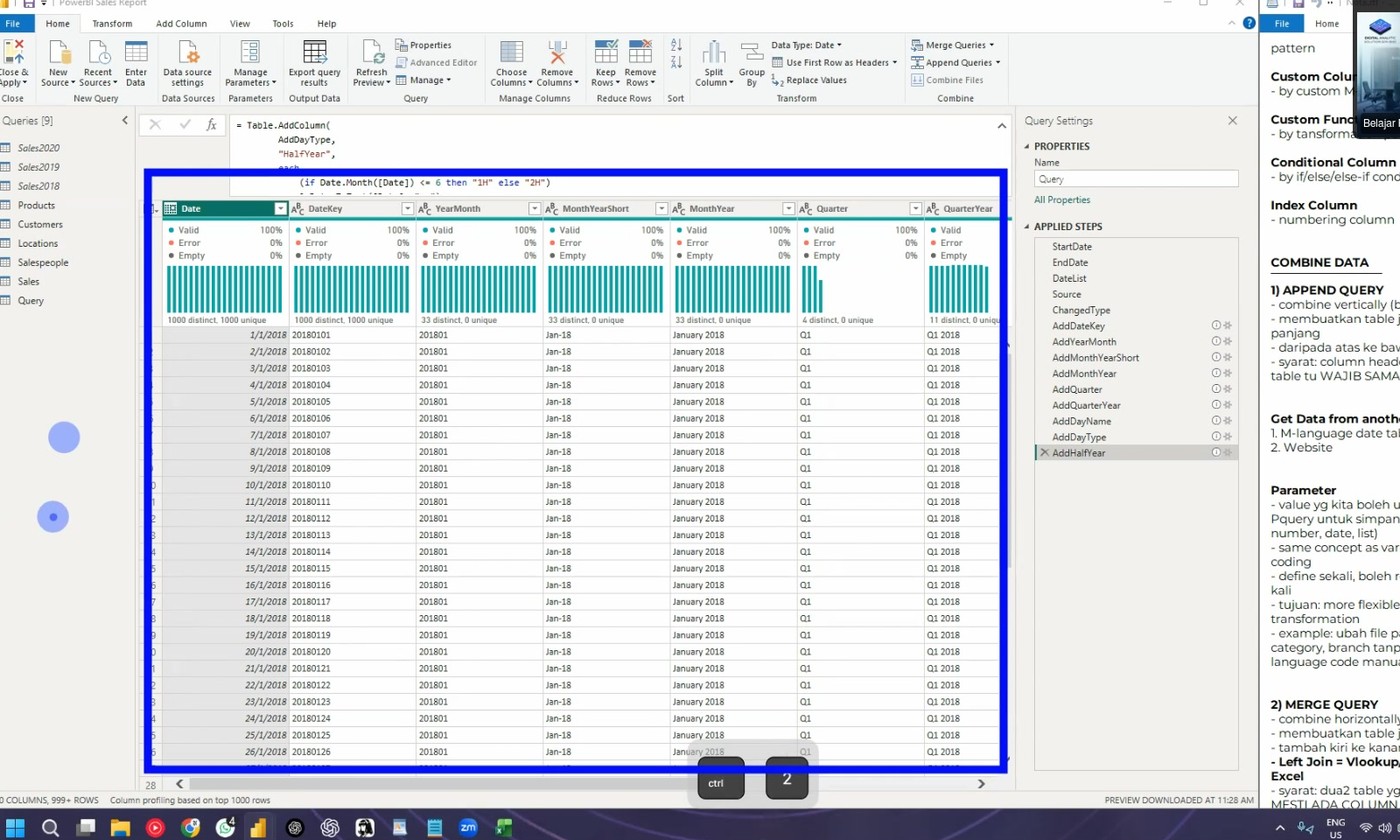 The calendar table after the code runs.
Step 4: Check the result
The table now has these columns:
| Column | Example value |
|---|---|
| Date | 24/01/2026 |
| Date Key | 20260124 |
| Year Month | 202601 |
| Month Year | Jan-26 |
| Month Name | January 2026 |
| Quarter | Q1 |
| Quarter Year | Q1 2026 |
| Day Name | Monday |
| Weekday | Weekday |
| Half Year | 1H26 |
- Check the top of the preview. The column names must be as shown.
- If you see an error message, check the code. A missing comma is a common problem.
Step 5: Rename the query
- Right-click the query in the Queries panel.
- Click Rename.
- Type Calendar.
- Press Enter.
No syntax errors
If the editor shows a syntax error, do not click Done. Find the red mark in the code and fix it.
Next: Continue to 8. Combine Data.