8. Combine Data
Goal: Combine Sales 2018, Sales 2019, and Sales 2020 into one table.
The three sales tables have the same columns. You combine them into one table for the report.
Why not copy and paste in Excel
The Excel way:
- Copy the data from each sheet.
- Paste it into one sheet.
Problem with the Excel way
When new rows arrive in Sales 2020, the combined sheet does not update. You must copy and paste again. This takes time and can make errors.
The Power Query way: Append as New. The combined table updates itself when the source files change.
Step 1: Check the column names
Before you combine, make sure all three tables have the same column names.
- Click each sales table.
- Compare the column headers.
- If a name is different, fix it with rename first.
Step 2: Append the tables
- Click Home in the ribbon.
- Click Append Queries.
- Click Append as New.
Append vs Append as New
Append adds the rows into the current query. Append as New makes a new query with all the rows. Use Append as New. Then the original tables are not changed.
Step 3: Select the three tables
- In the window, select Three or more tables.
- Add Sales 2018, Sales 2019, and Sales 2020 to the list.
- Check the order: 2018, 2019, 2020.
- Check for duplicate entries. Each table must appear one time only.
- Click OK.
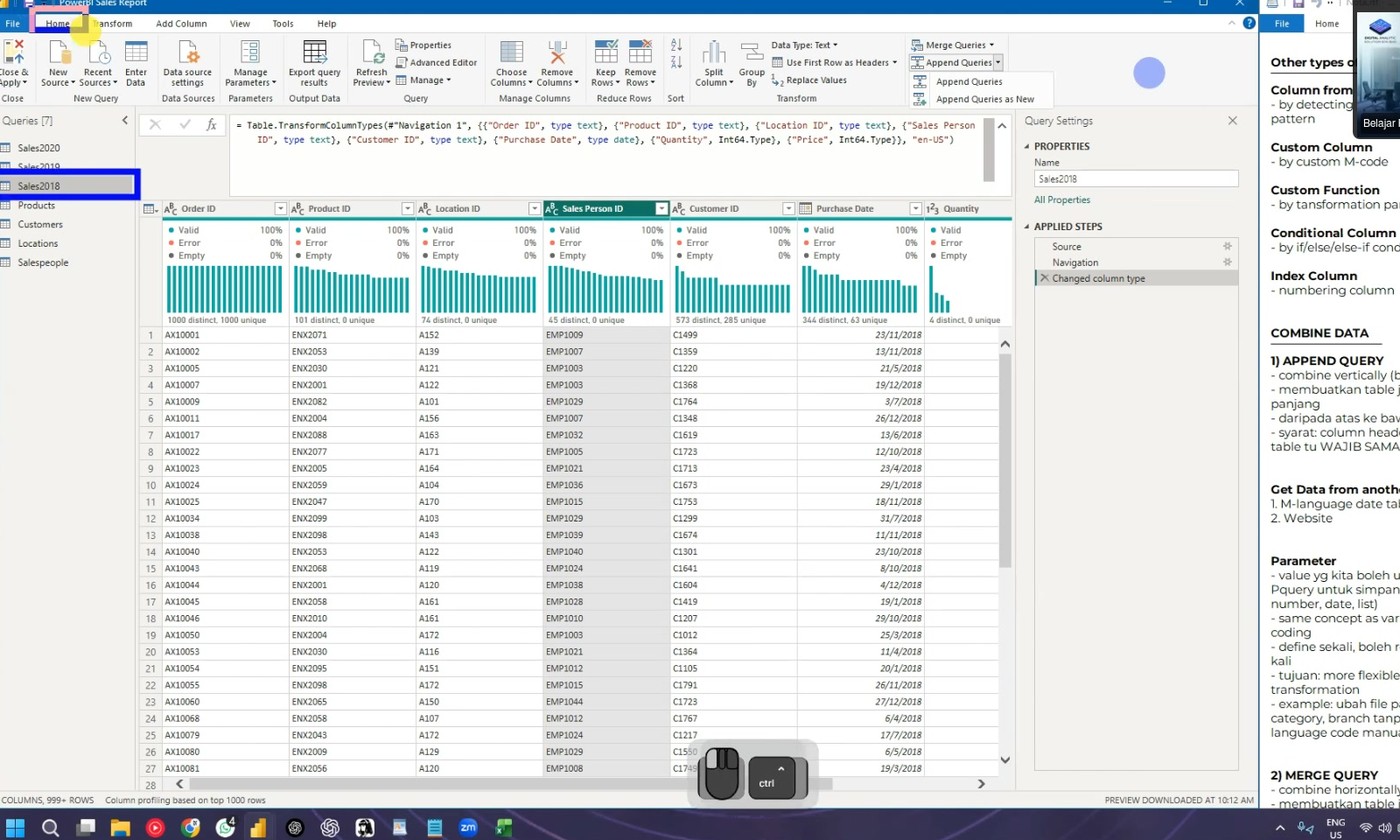 The Append window.
Trainer screenshot
The trainer shares this screenshot in the Zoom chat. Save it for your notes.
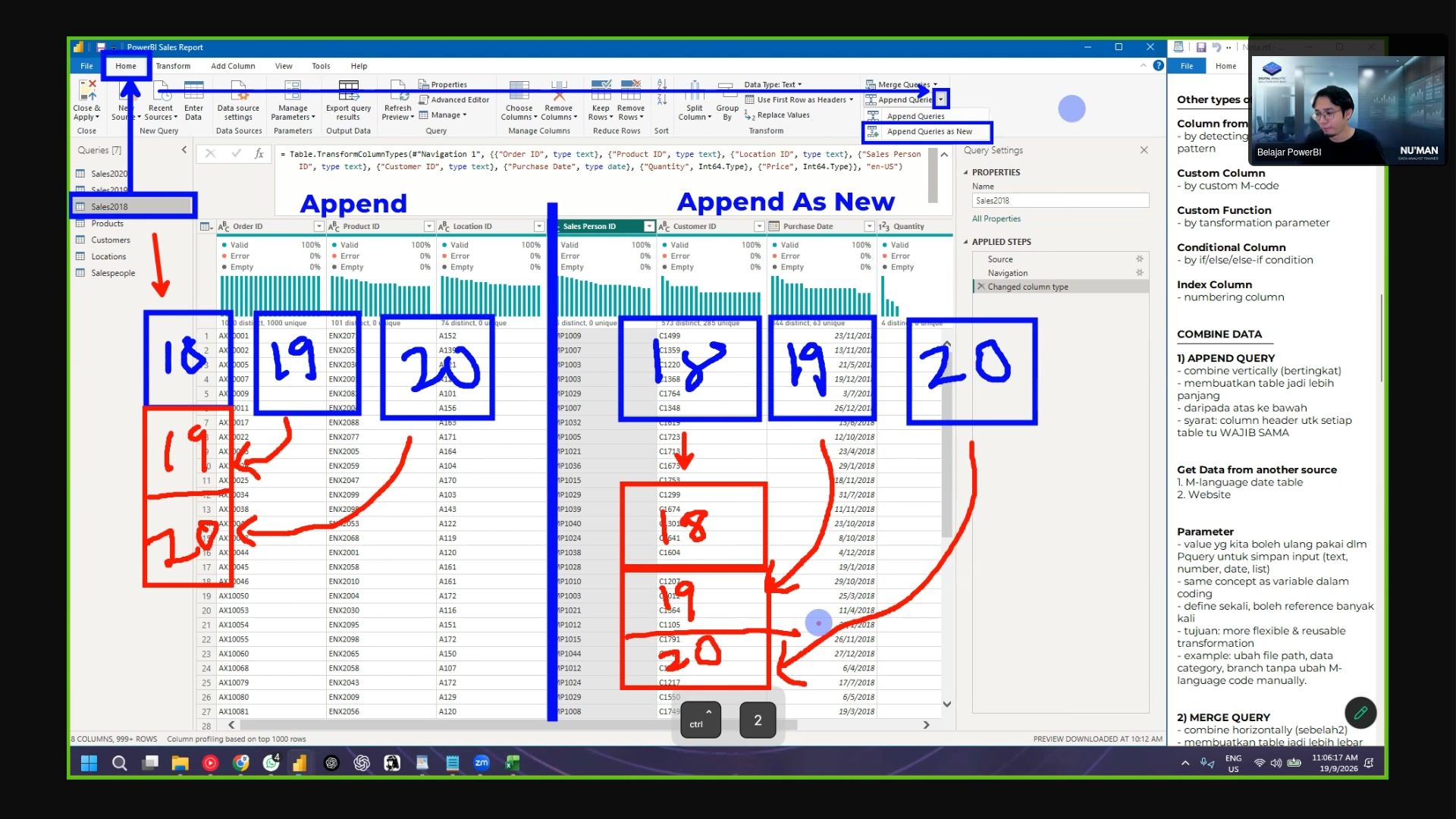 The trainer's screen at the "share screenshot" moment: the Append as
New window with the three sales tables selected.
Step 4: Rename the new query
- In the Queries panel, find the new query. The name is Append1.
- Press F2 or right-click and click Rename.
- Type Sales.
- Press Enter.
Step 5: Disable the load of the old tables
The three source tables are not needed in the report. The Sales table contains all the data.
- Right-click the Sales 2018 query.
- Click Enable Load. The checkmark disappears.
- Repeat for Sales 2019 and Sales 2020.
Disable load does not stop updates
The source tables still update. They are only hidden from the report.
Step 6: Test the refresh
- Click Refresh Preview.
- The Sales table shows the rows from all three tables.
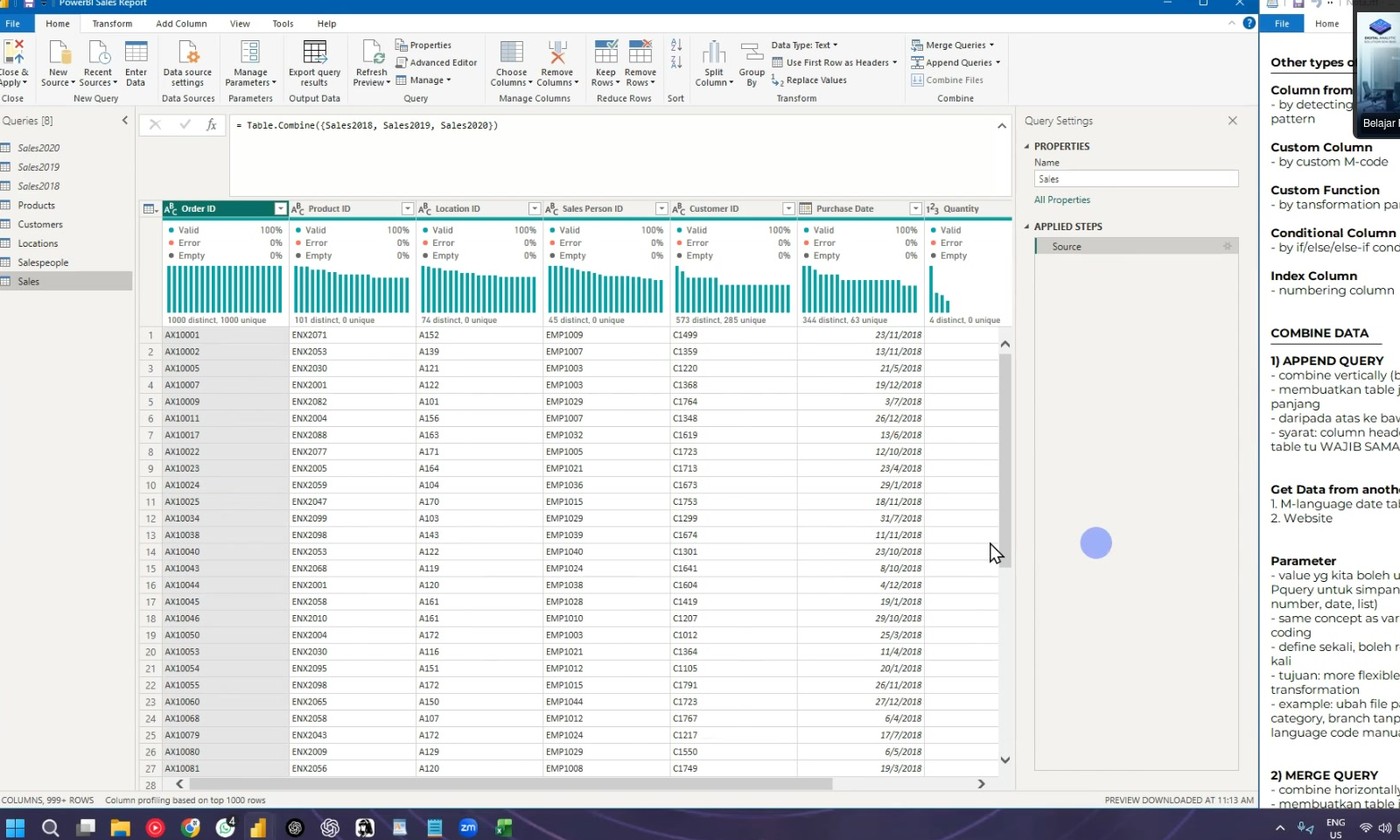 The Sales table with the rows from all three tables.
Good to know: how Power BI updates work
The flow is one-way:
Excel files --> Power Query --> Power BI report
- Change a value in the Excel file.
- Click Refresh in Power BI.
- The change appears in the report.
Power Query changes do not go back to the Excel file.
Column names
If someone changes a column name in the Excel file, Power Query shows an error. Check the Applied Steps and fix the step.
Next: Continue to 9. Web Data.