2. Power BI Settings
Goal: Change five Power BI settings before you load data.
The trainer changes these settings at the start of the class. Do the same steps before you import any data.
Restart required
Power BI asks for a restart after these changes. Save your work and restart Power BI. The settings remain.
Step 1: Open the Options window
- Open Power BI Desktop.
- Click File.
- Click Options and settings.
- Click Options. The Options window opens.
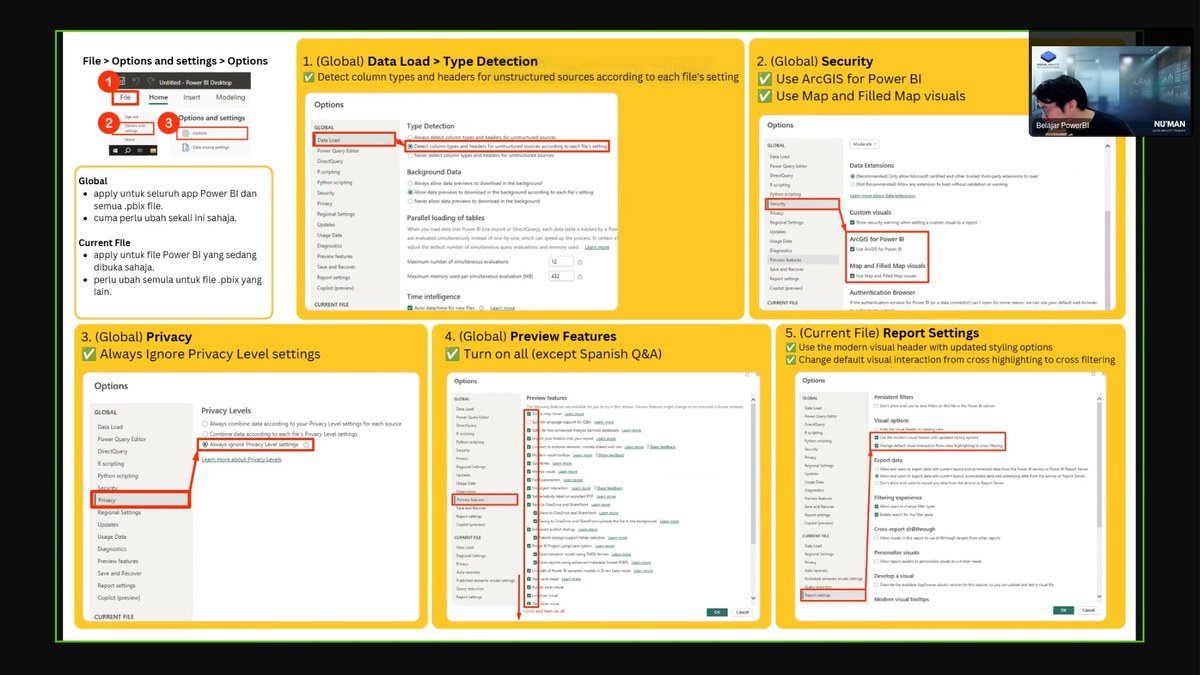 File > Options and settings > Options.
Step 2: Change the Data Load setting
- In the left list, click GLOBAL.
- Click Data Load.
- Find Type Detection.
- Turn on Detect column types and headers for unstructured sources according to each file's setting.
This setting tells Power BI to read column types automatically. You do not need to change data types by hand later.
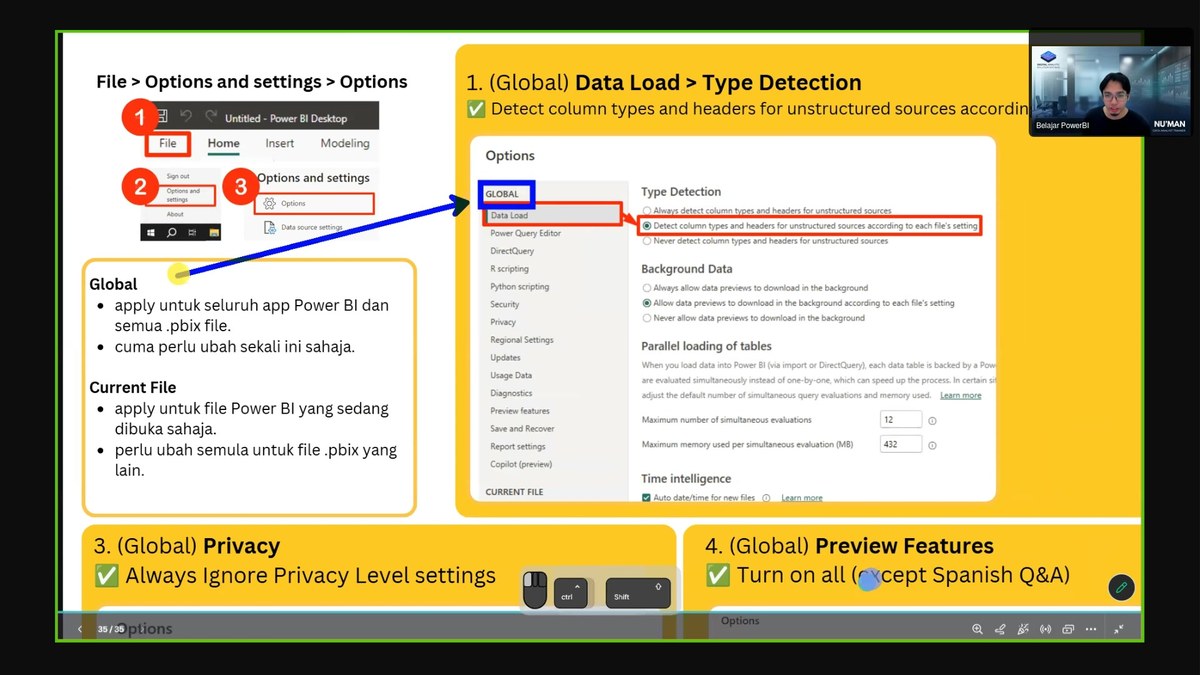 Type Detection under Data Load.
Step 3: Change the Security settings
- In the left list, click Security.
- Find Custom visuals.
- Turn on Use ArcGIS for Power BI.
- Turn on Use Map and Filled Map visuals.
These settings enable the map visuals for your reports.
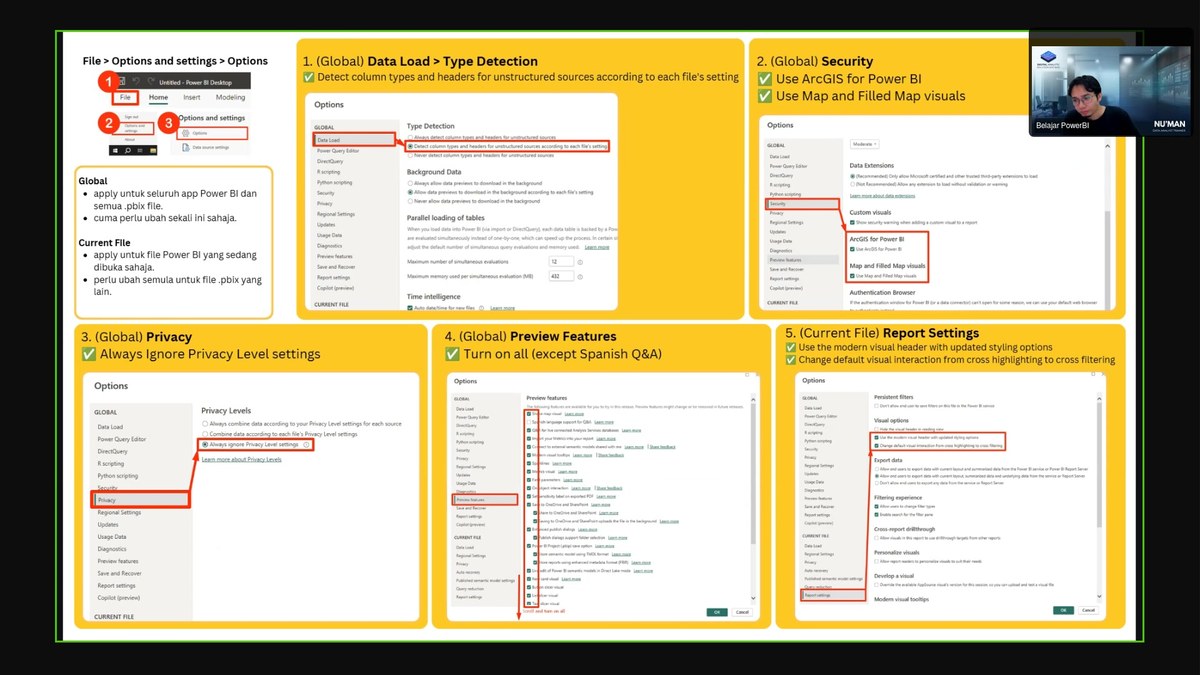 ArcGIS and Map settings under Security.
Step 4: Change the Privacy setting
- In the left list, click Privacy.
- Find Privacy Levels.
- Turn on Always ignore Privacy Level settings.
This setting prevents privacy-level errors when you combine data from different sources.
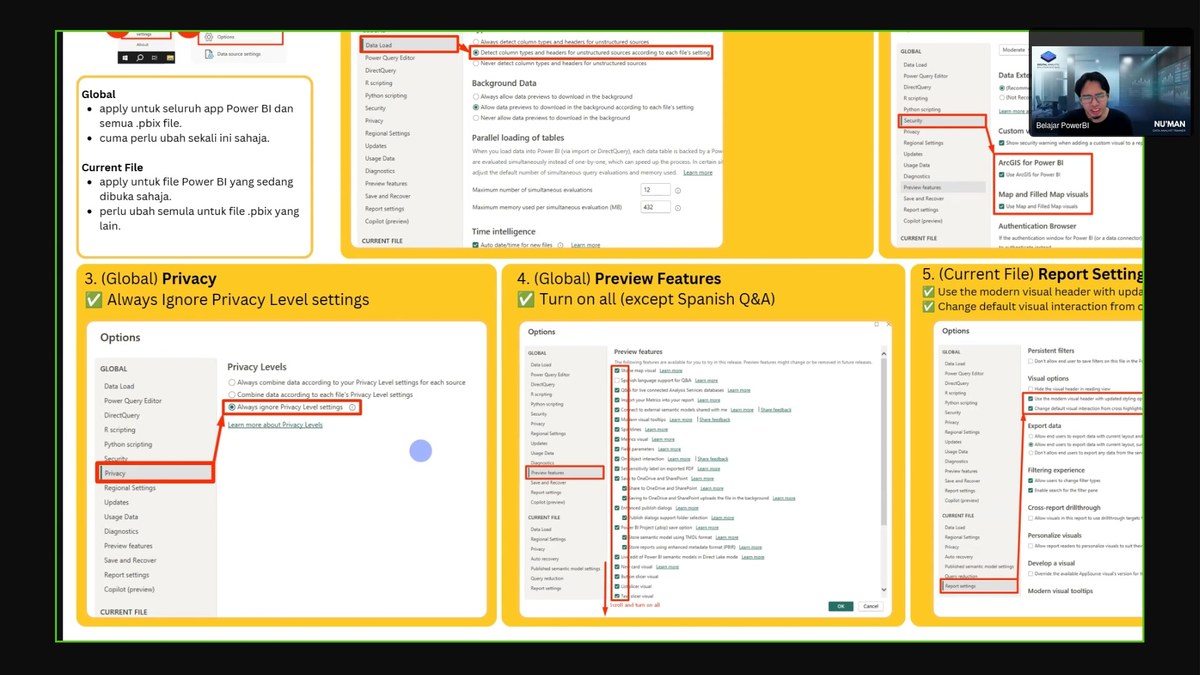 Privacy Level setting.
Step 5: Turn on the Preview features
- In the left list, click Preview features.
- Turn on all the features.
- Keep Spanish Q&A off. You do not need it.
Why turn them on
Preview features give you the newest tools. They are safe to use for training.
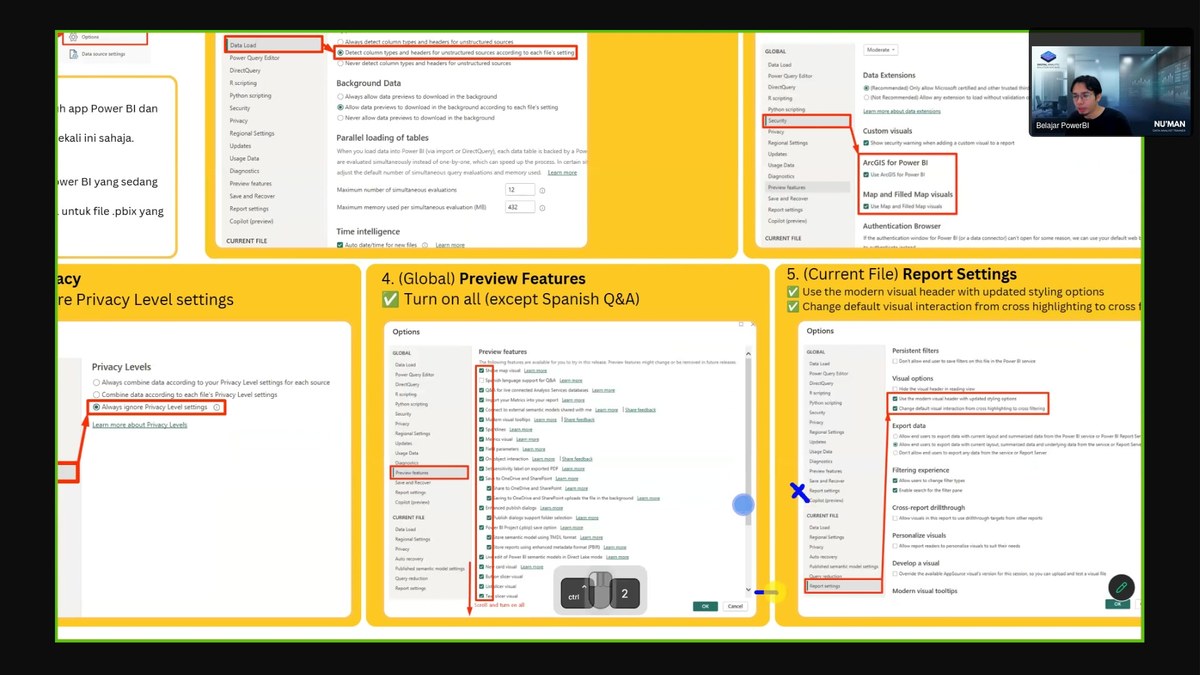 Preview features list.
Step 6: Change the Report settings (current file)
This setting applies to the current file only.
- In the left list, click CURRENT FILE.
- Click Report settings.
- Turn on Use the modern visual header with updated styling options.
- Turn on Change default visual interaction from cross highlighting to cross filtering.
Cross filtering
Cross filtering changes how visuals respond when you click one of them. You see the full filter result.
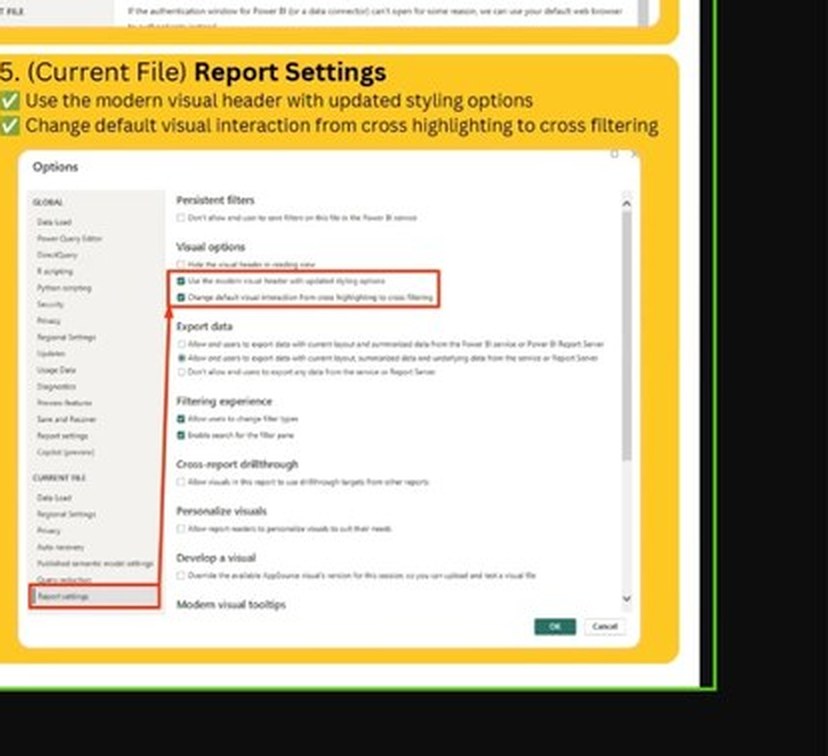 Report settings under CURRENT FILE.
Step 7: Restart Power BI
- Click OK.
- Click OK again on the restart message.
- Close Power BI.
- Open Power BI again.
Next: Continue to 3. Prepare Your Excel Data.